
How can I verify my Tembera ticket when boarding?
Before boarding, open your confirmed Tembera ticket and show it to the driver. The driver can scan the ticket QR code, enter its booking code, or read it by NFC when both devices support NFC ticket sharing.
How can I verify my Tembera ticket when boarding?
- Open your confirmed ticket. Open the ticket confirmation, look up the booking at Tembera Booking Lookup, or open a saved ticket and choose Show for boarding. Check that the ticket is for the bus trip you are boarding.
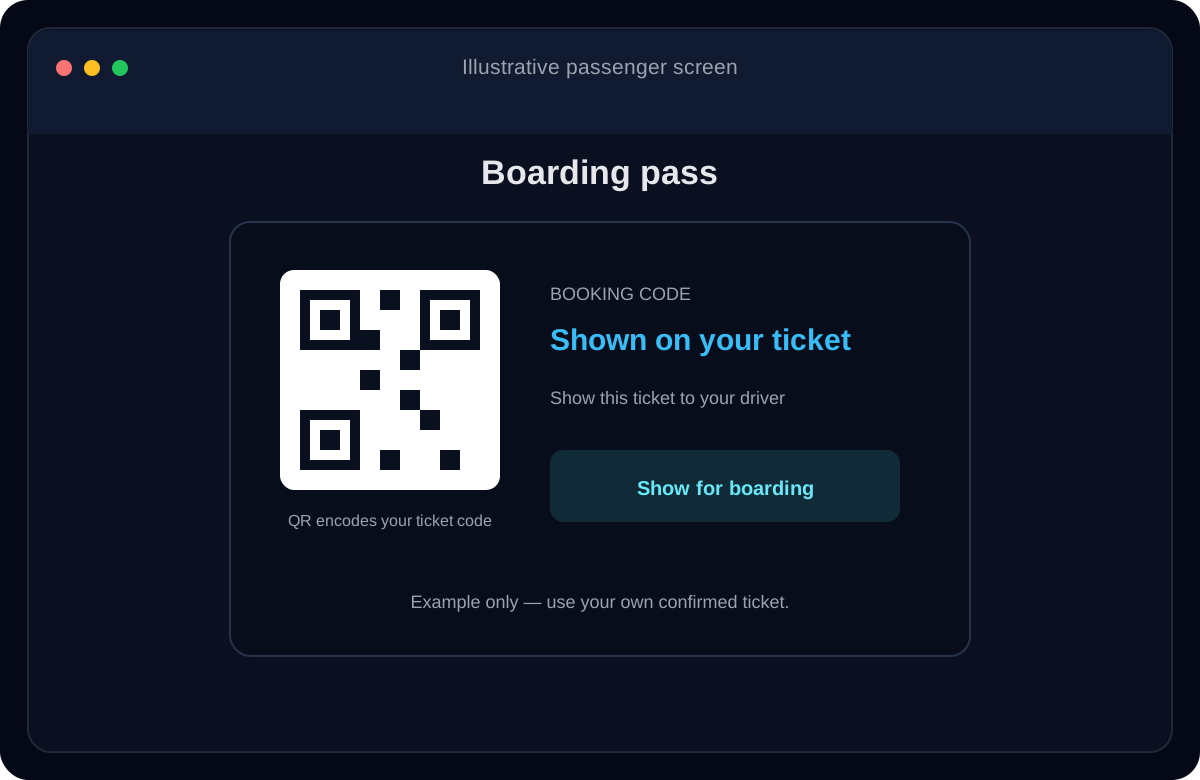
Example passenger ticket. Your QR code and booking code identify your confirmed booking. - Present one of the supported methods. Show the QR code so the driver can scan it, or show and read out the booking code so the driver can enter it. If NFC is available, open Show for boarding, choose Tap to driver, and hold your phone near the driver’s NFC-ready device.
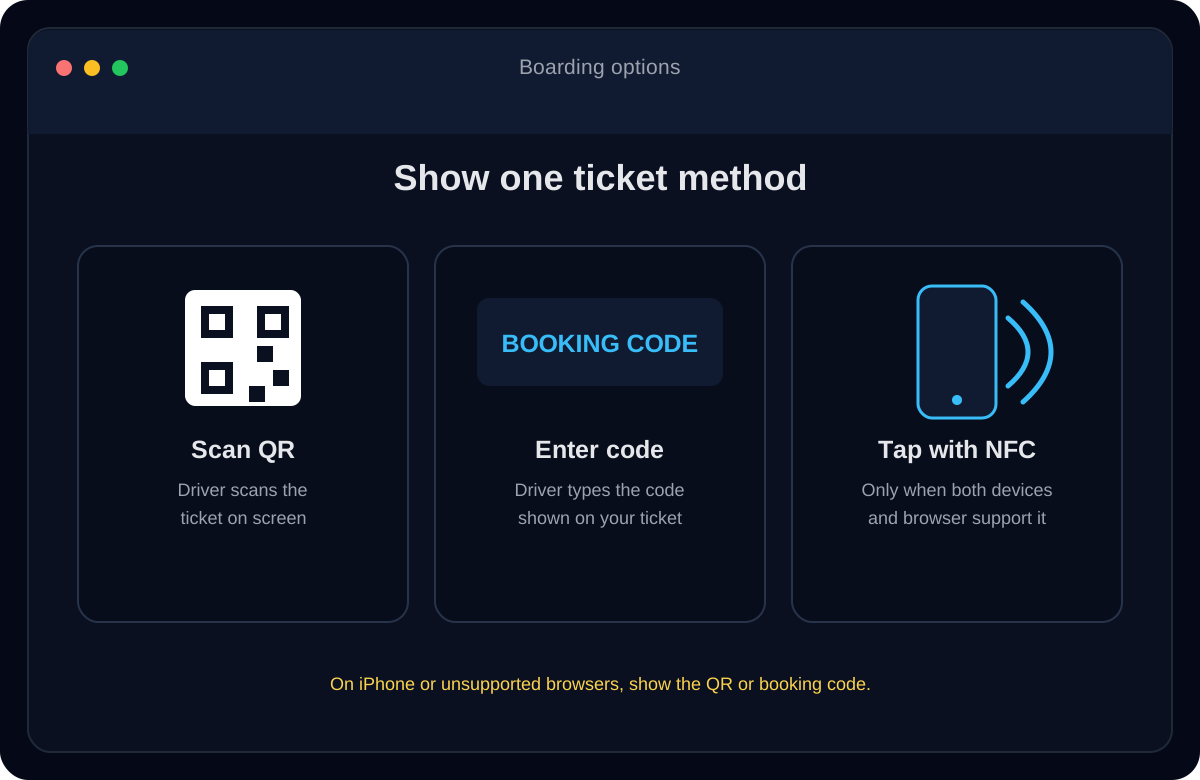
The driver chooses the matching validation method. NFC is available only on supported devices. - Wait for the driver’s validation result. Wait while the driver checks the ticket for the active trip and stop. Board when the ticket is accepted. If the scan or tap does not work, use the booking code instead and let the driver check the result.
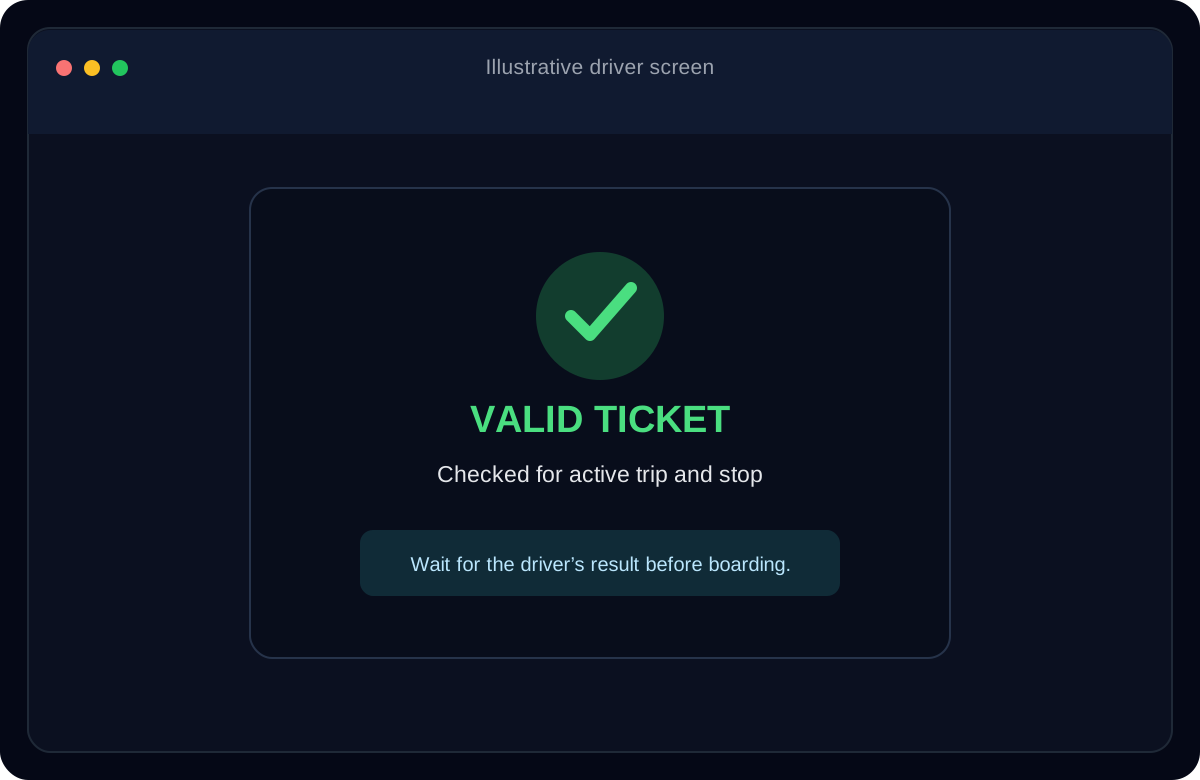
Example validation result. The driver’s active trip and boarding stop are checked.
What does ticket verification check?
The driver validates the ticket against the active bus trip and boarding stop. Validation can report a valid ticket or identify an issue such as an unpaid, already used, wrong-trip, wrong-stop or invalid ticket. Follow the driver’s instructions if a result needs attention.
NFC ticket sharing requires compatible NFC-enabled devices and browser support. The passenger-side NFC sharing feature is supported on Android Chrome; iPhone or an unsupported browser should use the QR code or booking code instead.
Keep your ticket ready
Open the ticket confirmation, look up your booking, or open a saved ticket from the passenger app. Keep the screen brightness high enough for scanning. You can also save or download the ticket in advance; do not share your booking code publicly.
Frequently asked questions
Can the driver scan my Tembera ticket QR code?
Yes. Open the confirmed ticket and show its QR code so the driver can scan it in the ticket validation screen.
Can I give the driver my booking code instead?
Yes. Show or read out the booking code printed with your ticket; the driver can type it into the validation screen.
Can I use NFC to board?
Yes, when supported NFC is available on both devices. Open Show for boarding, start Tap to driver, and hold your phone near the driver’s NFC-ready device. Use QR or code on iPhone or unsupported browsers.
What if my ticket is not accepted?
Ask the driver to check the validation result and confirm the ticket, active trip and boarding stop. An unpaid, used, wrong-trip, wrong-stop or invalid ticket may not be accepted.
Can the kiosk vendor verify my bus ticket?
A kiosk vendor can scan the ticket QR or enter the booking code to verify a matching extras order for handover. Boarding validation is performed by the driver.